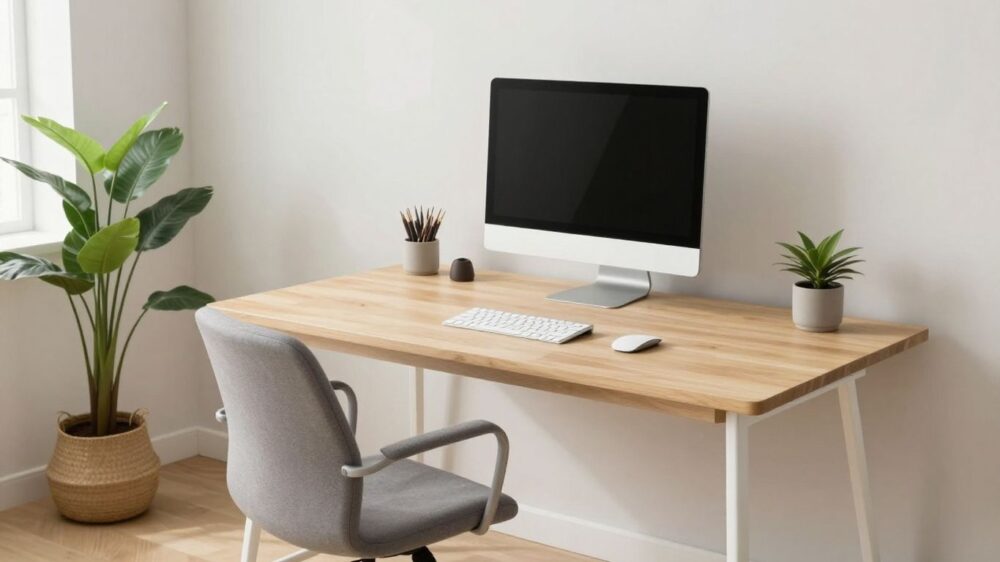
Understand the basics of desk ergonomics
Desk ergonomics 101 starts with a simple idea: our workspace should fit the way we sit, reach, look, and move. We do not need a perfect posture held rigidly all day. We need a setup that keeps frequently used tools close, supports our body, and makes small changes in position easy.
Why neutral posture matters
Neutral posture means our head is balanced over our shoulders, our shoulders can relax, and our elbows stay near our sides. Our wrists remain fairly straight rather than bent sharply up, down, or sideways. When we arrange the desk around these positions, we reduce the need to hold one awkward shape while we work.
We can use neutral posture as a starting point, not a strict pose. A slight change in position is usually more helpful than trying to freeze ourselves in place. If we notice that we are reaching, hunching, or twisting repeatedly, the furniture or equipment may need adjusting.
How ergonomics can reduce everyday strain
Ergonomics looks at the relationship between our body, our tools, and the tasks we repeat. A screen that is too low may encourage us to bend our neck; a mouse placed too far away may pull one shoulder forward. Moving the equipment can be a more useful first step than simply reminding ourselves to sit up.
We can begin with the changes that affect us most often. Bring the keyboard closer, raise the screen, or adjust the chair before buying anything new. Small, repeatable adjustments tend to be easier to maintain than a dramatic makeover that makes the desk difficult to use.
The difference between comfort and proper support
Softness can feel pleasant at first, but comfort alone does not tell us whether a setup is supportive. A chair may feel cushioned while leaving our feet unsupported, and a laptop may seem convenient while making us look down for hours. Support means the workspace helps us stay close to a relaxed, balanced position.
We should also treat comfort as useful feedback rather than proof that everything is correct. If a new arrangement feels strange, give it a little time and check whether it improves our alignment without creating pressure elsewhere. The best setup is one we can use naturally and adjust as our work changes.
Adjust your chair for better alignment
Our chair establishes the height and angle from which almost every other adjustment follows. We can set it before positioning the monitor, keyboard, or desk accessories. A good fit lets our feet feel stable and gives our upper body room to work without leaning forward.
Set the right seat height
Start with both feet resting on the floor, if possible, and let the knees sit roughly level with or slightly lower than the hips. Our thighs should feel supported without the front edge of the seat pressing into the backs of the knees. If raising the chair makes our feet dangle, a footrest can fill the gap.
We can test the height by placing our hands on the keyboard in a relaxed position. If our shoulders lift or our elbows drift outward, the chair may be too high, or the desk may be too high for the chair. Make one adjustment at a time so we can tell what actually helped.
Support your lower back and hips
Sit back far enough that the chair supports our pelvis and lower back rather than leaving us perched on the front edge. The lumbar support should meet the natural inward curve of our lower back without pushing us aggressively forward. If the chair has adjustable support, move it gradually and check how it feels while working.
Our hips should remain level and our weight should feel reasonably even across the seat. We do not need to force our back into a perfectly straight line. Instead, we want the backrest to make a relaxed, supported position easier to return to.
Position your armrests and seat depth
Armrests work best when they allow our shoulders to drop and our elbows to rest lightly. If they are too high, they can create a shrug; if they are too low, we may lean or reach to use them. We can lower or move them aside if they interfere with getting close enough to the desk.
Seat depth matters as well. Leave a small amount of space between the seat edge and the backs of our knees, while keeping enough of the thighs supported. If the seat is too deep, a cushion or a different chair adjustment may help us sit back without slouching forward.
Position your desk and monitor correctly
The desk and monitor should support the way we look and reach, not force our chair to compensate. We can first place the monitor, then check the keyboard and mouse, and finally fine-tune the chair. This order helps us avoid fixing one problem by creating another.
Place your monitor at eye level
Position the main monitor so the top of the screen is near eye level, then adjust it according to what feels natural when we read. We should be able to view the central area without repeatedly dropping the chin or tipping the head back. The screen should sit directly in front of us when it is the one we use most.
If we use two monitors, place the primary one in front and the other beside it. If both are used equally, we can center the space between them, accepting that we will turn slightly more often. The goal is to reduce long periods of neck rotation, not to eliminate every small movement.
Set the right viewing distance
Place the monitor far enough away that we can read without leaning toward it, while keeping the text comfortably clear. Our preferred distance will depend on screen size, eyesight, and display settings. Increasing text size or changing scaling can be more helpful than moving the monitor repeatedly.
Glare also affects how close we feel we need to sit. Turn the screen away from direct reflections, adjust blinds or lighting, and keep the brightest light source from shining straight into the display. We can then judge distance with our eyes and posture in a more neutral environment.
Adapt your desk height to your body
A desk should leave enough room for our thighs and let our elbows stay near our sides while we type. If the desk cannot be adjusted, we can usually work around it by changing chair height and adding foot support, though we should still check that our shoulders remain relaxed.
A sit-stand desk gives us another option, but standing does not automatically make a setup ergonomic. Raise the work surface until the keyboard and mouse sit at a height that keeps our elbows comfortable. Then check the monitor again, since changing desk height can alter our viewing angle.
Set up your keyboard and mouse
Input devices shape the position of our hands, forearms, and shoulders for much of the workday. We should place them after adjusting the chair and monitor, with enough space to move without reaching. A tidy surface helps, but the main test is whether our hands can work without constant tension.
Keep your wrists and hands neutral
Let our wrists continue the general line of our forearms rather than bending sharply upward or sideways. Keep the fingers relaxed and use only as much force as the keys or mouse require. If we find ourselves resting heavily on the heel of the hand while typing, move the keyboard or adjust the chair before adding support.
A wrist rest can be useful during pauses, but pressing into it while typing may limit natural movement. We can keep the hands floating lightly over the keys during active input and use the rest when our hands are still.
Position input devices within easy reach
Place the keyboard close enough that our elbows can stay near the body and our shoulders can relax. Keep the mouse beside it rather than far forward or at an angle that pulls the arm outward. Frequently used controls should not require repeated twisting of the torso.
We can also reduce reach by moving less-used items away from the primary work zone. A notebook, phone, or document holder belongs where we can see or use it without turning sharply. These small choices make the desk feel calmer and reduce unnecessary repetitions.
Choose between a standard and ergonomic keyboard
A standard keyboard can work well when it lets us keep the hands, wrists, and forearms relaxed. An ergonomic keyboard may be worth trying when a different key layout or split design makes a neutral hand position easier. Neither shape is automatically right for everyone.
We should give any new keyboard a fair adjustment period and pay attention to how we actually use it. Keep the device at a height that does not lift the shoulders, and avoid choosing a model solely because it looks specialized. Fit and ease of use matter more than appearance.
Improve your sitting and standing habits
Even a carefully arranged desk cannot make one position suitable for every hour. Our bodies benefit from changing position, shifting weight, and taking our eyes away from the screen. We can build these habits into ordinary work rather than waiting until discomfort becomes distracting.
Alternate between sitting and standing
If we have the option, alternate between sitting and standing in a way that feels sustainable. Standing should allow relaxed shoulders, a comfortable viewing angle, and enough room to move the feet. We should not lock the knees or lean heavily into the desk.
The transition itself can be useful. We can stand for a call, sit for focused typing, or change position after finishing a task. There is no single schedule that suits every person, so we can use comfort and concentration as practical cues.
Take movement breaks throughout the day
Short movement breaks interrupt the stillness that builds during screen work. We can stand to refill water, walk to another room, roll the shoulders, or look across the room for a moment. These pauses do not need to become elaborate routines.
A simple set of reminders can make breaks more consistent:
- Change position when we finish a task or meeting.
- Move the shoulders, elbows, wrists, hips, and ankles gently.
- Look away from the screen and focus on something farther away.
- Walk briefly instead of completing every small task from the chair.
Afterward, we can return to work with the chair, screen, and input devices still in place. The point is not to interrupt concentration constantly, but to avoid letting long periods of stillness pass unnoticed.
Use simple desk stretches and mobility exercises
Gentle movement can include shoulder rolls, opening and closing the hands, turning the head within a comfortable range, and standing to extend the hips. We should move slowly and stop if an exercise creates sharp pain, tingling, or worsening discomfort. Stretching should feel easy rather than forced.
We can pair one or two movements with ordinary transitions, such as waiting for a file to load or finishing a call. This makes mobility part of the workday instead of another item we must remember at the end of it.
Choose ergonomic accessories wisely
Accessories are useful when they solve a specific mismatch between our body and the desk. They are not automatically improvements, and adding too many can reduce the space available for natural movement. Before buying anything, identify the position we are trying to change.
When to use a footrest
A footrest can help when our feet do not reach the floor after we set the chair at a height that works for the desk. It should feel stable and allow the feet to rest without forcing the knees into an uncomfortable angle. A box or firm platform may work for testing the idea before we buy a dedicated product.
We should still check the rest of the setup after adding it. If the footrest pushes our legs too high or makes us slide forward, change its height or reconsider the chair position. The aim is stable support, not an extra object under the desk.
How a monitor arm can improve flexibility
A monitor arm can make it easier to adjust screen height, distance, and angle as our work changes. It may also free some desk space, which can help us bring the keyboard and mouse closer. The arm needs a secure attachment and enough movement for the screen to remain stable.
We can use that flexibility when switching between sitting and standing, sharing a screen, or clearing space for another task. After moving the monitor, recheck its alignment instead of assuming the previous position still works.
Evaluating wrist rests, laptop stands, and desk mats
A laptop stand is helpful when the built-in screen is too low, but raising the laptop usually means we need a separate keyboard and mouse. A wrist rest should support relaxed pauses without encouraging pressure during active typing. A desk mat is mainly a surface choice, so it should not make the mouse harder to control or the keyboard unstable.
We can evaluate accessories with a short practical test: does the item make a neutral position easier, and can we still reach what we use? If the answer is no, the accessory is adding complexity rather than solving the original problem.
Troubleshoot common desk setup problems
Discomfort is a signal to investigate the setup, not a reason to blame ourselves for failing to sit perfectly. We can review the most repetitive task, notice where the body feels loaded, and change one factor at a time. Keeping a simple note of what improves or worsens the feeling can reveal patterns.
Fix neck and shoulder discomfort
Start by checking whether the monitor is too low, too far away, or off to one side. Then check whether the mouse is forcing one shoulder forward or whether the armrests are keeping the shoulders lifted. Bringing the screen and input devices into a more direct position often gives us a clearer test.
We should also notice whether we are leaning toward the screen because text is difficult to read. Increase text size, adjust display settings, or improve lighting before pulling the monitor closer. If the discomfort continues or becomes more severe, pause the experiment and seek appropriate professional guidance.
Address wrist, hand, and forearm strain
Look for bent wrists, excessive mouse reach, a keyboard that is too high, or a grip that is tighter than necessary. Let the forearms rest lightly when possible and alternate small tasks so the same movement is not repeated continuously. A short break may help us assess whether the workstation is contributing to the problem.
We can also check whether the desk edge presses into the forearms. Repositioning the keyboard, changing chair height, or clearing objects from the work area may reduce that contact. Do not push through persistent pain, numbness, or tingling simply to finish a task.
Know when to seek professional guidance
If discomfort is persistent, worsening, or accompanied by weakness, numbness, or unusual symptoms, we should consult a qualified health professional. A workplace ergonomics assessment may also help when we cannot identify the source or when the same issue returns after several adjustments. General desk tips cannot diagnose an injury.
Before an assessment, note the tasks we perform, when symptoms appear, and which changes we have tried. That information can help a professional understand the situation. We can keep the workspace adjustable while we wait rather than making increasingly drastic changes on our own.
Conclusion
A supportive desk begins with fit rather than expensive equipment. We can adjust the chair, place the monitor and input devices within comfortable reach, and build regular movement into the day. By treating comfort as useful feedback and making one practical change at a time, we create a workspace that supports how we actually work.
Frequently Asked Questions
What is desk ergonomics 101?
Desk ergonomics 101 is a practical introduction to arranging a chair, desk, monitor, keyboard, and mouse around a comfortable working position. It also includes changing posture and moving regularly rather than relying on furniture alone.
How high should a monitor be?
The top of the monitor should generally sit near eye level, with the screen directly in front of us. Adjust the height and viewing angle so we can read without repeatedly bending the neck or tipping the head back.
Should our feet touch the floor while sitting?
Ideally, our feet should feel supported on the floor. If the chair height that suits the desk leaves the feet unsupported, a stable footrest can help maintain a balanced sitting position.
Is standing better than sitting for desk work?
Neither position is automatically best for every task or person. Alternating between sitting and standing, while keeping both positions comfortable and supported, is usually more practical than staying fixed in one position.
Where should a keyboard and mouse go?
Place them close enough that the elbows stay near the body and the shoulders can relax. The wrists should remain fairly straight, and the mouse should not require a long reach or repeated shoulder rotation.
Do we need an ergonomic chair?
Not necessarily. A chair is useful when it can be adjusted to support our hips, lower back, feet, and working height. A simpler chair may work well if it fits our body and allows the rest of the workstation to align comfortably.
When should we ask for professional help with desk discomfort?
Seek qualified guidance when discomfort persists, worsens, or includes symptoms such as numbness, tingling, or weakness. A professional can help distinguish a workstation issue from a health concern and suggest an appropriate next step.