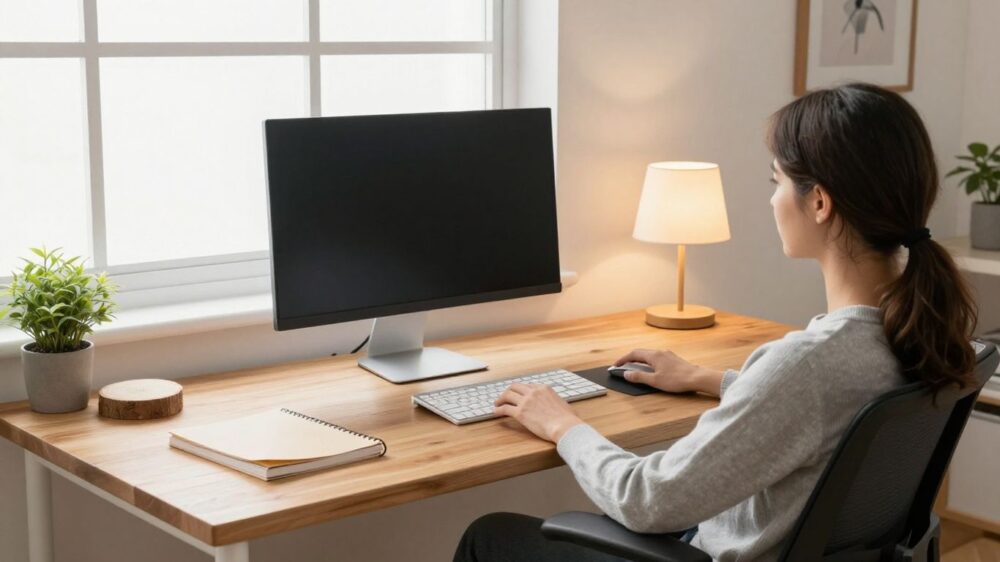
Understand the basics of desk ergonomics
Desk ergonomics 101 starts with a simple idea: our workspace should fit the way we work, rather than forcing our bodies to fit the furniture. We look at the chair, desk, screen, lighting, and our habits as one connected arrangement. Small adjustments can make a long work session feel less demanding, but comfort is personal and worth checking throughout the day.
How posture affects comfort and productivity
Posture changes how comfortably we breathe, reach, type, and hold our attention. When we slump or lean towards a screen, our muscles may have to work continuously to support the head and upper body. We do not need to sit rigidly upright; we need a position that feels supported and allows us to change position easily.
The role of neutral alignment
Neutral alignment means keeping the head, neck, spine, hips, and limbs in a relatively natural line while we work. Our shoulders can stay relaxed, elbows close to the body, and wrists fairly straight instead of bent towards the keyboard. Comfortable alignment is a moving target, not a pose we must hold perfectly for eight hours.
Common causes of desk-related strain
Strain often builds when we reach too far for a mouse, look down at a laptop, perch on the edge of a seat, or work with a screen that catches glare. A desk that is too high or too low can also encourage raised shoulders and awkward wrist angles. Rather than blaming one piece of furniture, we can observe which movements or positions keep repeating.
When discomfort may signal a larger problem
Persistent, worsening, or unusual discomfort deserves attention rather than another quick desk adjustment. We can pause, change activities, and seek appropriate professional guidance when symptoms interfere with normal tasks or do not settle. A well-arranged workstation supports comfort, but it cannot diagnose or treat an underlying condition.
Adjust your chair for proper support
Our chair establishes the height and stability of the whole workstation. We begin by adjusting it while wearing the shoes we normally work in, then check how our feet, hips, back, and arms relate to the desk. A supportive chair should make it easier to move naturally, not lock us into one position.
Setting the correct seat height
We can raise or lower the seat until our feet rest comfortably on the floor and our knees sit roughly level with, or a little lower than, our hips. If the desk then feels too high for relaxed shoulders, a footrest may help us keep our feet supported. We should avoid adjusting the chair solely to match the desk if that leaves our legs dangling.
Supporting your lower back and hips
The backrest should meet the shape of our lower back without pushing us forwards. We can sit back into the chair and let the pelvis feel supported rather than sliding towards the edge. A small cushion can be a temporary experiment, but it should not create pressure or encourage an exaggerated arch.
Positioning the seat depth and armrests
With the back against the backrest, we want some space between the seat edge and the backs of our knees. If the seat is too deep, we may perch forwards; if it is too shallow, we may lose support. Armrests are useful when they let the shoulders relax, but they should not prevent us from moving close enough to the desk.
Choosing between an office chair and an alternative seat
An office chair is not automatically the best choice for every room or body. We can use another stable seat if it allows supported sitting, sensible height, and enough freedom to move. Whatever we choose, we should judge it by how well it supports our actual working posture rather than by its label or appearance.
Position your desk, monitor, and keyboard
Once the chair is set, we arrange the tools around our body. The screen should be easy to see without leaning, while the keyboard and mouse should be close enough that our elbows stay near our sides. We make one adjustment at a time, because moving the monitor can change how we hold our neck and shoulders.
Finding the ideal monitor height and distance
We can place the monitor directly in front of us, at a distance that lets us read without leaning forwards. The top of the screen is often comfortable at or slightly below eye level, although reading habits and glasses can change the best position. If we regularly tilt our chin down or crane our neck, the monitor probably needs attention.
Keeping the keyboard and mouse within easy reach
The keyboard and mouse belong close enough for relaxed shoulders and bent elbows. We should not have to reach forwards repeatedly or twist the torso to use the mouse. Frequently used items can stay near the dominant hand, while less-used objects can move farther away to preserve the main working zone.
Aligning your elbows, wrists, and shoulders
We aim for elbows near the sides, forearms supported when practical, and wrists in a neutral line with the hands. The keyboard does not need to be perfectly flat for everyone, but a steep angle can increase wrist extension. We can type lightly and keep the shoulders from creeping upwards as concentration increases.
Adapting your setup for multiple monitors
With two or more monitors, we decide which screen receives most of our attention. That screen can sit directly in front of us, with secondary screens beside it and angled slightly inward. If we share our time evenly, placing the monitors close together and centred as a group can reduce repeated neck rotation.
Optimize lighting and reduce visual strain
Good lighting lets us see the screen without squinting or leaning closer. We look at daylight, room lighting, screen brightness, and reflections together rather than treating the display as the only source of strain. The right setup may change between morning, afternoon, and evening.
Placing your desk to manage natural light
We can position the desk so windows are beside the screen rather than directly behind it or in front of our eyes. Side light is usually easier to manage than a bright window reflected in the display. Curtains or blinds give us a simple way to soften changing daylight without working in a dark room.
Reducing glare and screen reflections
We can turn the screen slightly, move reflective objects, or adjust the desk angle when bright patches appear on the display. Cleaning the screen may also improve clarity without requiring extra brightness. Matte surfaces around the monitor and a carefully placed lamp can make the visual field calmer.
Choosing comfortable brightness and contrast settings
Screen brightness should feel broadly consistent with the room, not like a small lamp shining into our eyes. We can adjust brightness and text size together, then test the settings during ordinary work rather than relying on a vivid showroom appearance. If we keep leaning in, increasing text size may be more useful than increasing brightness.
Following the 20-20-20 rule
The 20-20-20 rule gives our eyes a simple reminder: about every 20 minutes, look at something around 20 feet away for about 20 seconds. We can pair it with a sip of water or a brief posture change so it becomes part of the workflow. It is a prompt to look away regularly, not a test we need to follow perfectly.
Build healthy movement habits
Even a carefully arranged desk cannot remove the demands of prolonged computer work. Our bodies respond well to variety, so we make room for small shifts rather than waiting until we feel stiff. Movement can be quiet and practical: standing to read, walking during a call, or changing how we rest our arms.
Why even a perfect workstation is not enough
A good setup reduces awkward reaching and unsupported positions, but it does not make staying still all day ideal. Muscles and joints experience different demands when we sit, stand, walk, and change posture. We therefore treat ergonomics as a pattern of choices, not a one-time furniture purchase.
Planning posture changes and movement breaks
We can attach short movement breaks to existing cues, such as finishing a meeting or sending a report. A reminder can help at first, but the long-term aim is to notice when we have been in one position too long. The following small choices are easy to rotate through:
- Stand up and let the arms hang naturally for a moment.
- Walk to refill water or collect something from another room.
- Reset the chair, screen, and keyboard after a long task.
- Look away from the screen while taking several relaxed breaths.
These are not formal workouts, and they do not need to interrupt concentration for long. Their value comes from breaking up repetition and giving us a chance to notice whether the workstation still feels right.
Alternating between sitting and standing
Changing between sitting and standing can add variety, provided both positions are arranged thoughtfully. When standing, we keep the screen and input devices close enough that we do not lean forwards; when sitting, we return to supported feet and hips. We do not need to stand continuously or treat standing as automatically better.
Using stretches and exercises during the workday
Gentle movement can help us vary the day, such as rolling the shoulders, opening and closing the hands, or walking at an easy pace. We stop any movement that causes sharp or increasing discomfort. If we are unsure what is suitable after an injury or for an ongoing condition, we can ask a qualified health professional for individual guidance.
Personalize your workstation for your needs
There is no single desk arrangement that fits every body, task, room, or budget. We use the basic principles as a starting point, then adapt the details to our reach, vision, equipment, and working patterns. A setup earns its place by making ordinary tasks easier without creating new awkwardness.
Adjusting ergonomics for different body types
Height, limb length, mobility, and proportions all affect how a workstation feels. We can prioritise supported feet, a comfortable seat depth, and a screen position that avoids reaching or bending, then use accessories only where they solve a clear gap. The same chair and desk settings may suit two people differently, so copying someone else’s setup is only a starting experiment.
Setting up a laptop for extended use
A laptop is convenient, but its attached screen and keyboard make a neutral arrangement harder during long sessions. We can raise the screen and add a separate keyboard and mouse, keeping the display and input devices positioned independently. For shorter tasks, we may accept a simpler setup, but extended use deserves the same care as a desktop.
Accommodating glasses, injuries, and chronic conditions
Glasses can change the most comfortable screen distance or angle, while an injury may limit how far we can reach or rotate. We can increase text size, reposition frequently used items, and make changes gradually rather than forcing a standard posture. Ongoing symptoms or a known condition call for individual advice from an appropriate professional.
Evaluating your setup and making improvements over time
We can review the workstation after a normal week instead of judging it in a single five-minute sitting. Notice where we lean, reach, squint, or shift repeatedly, then change one factor and see whether the task feels easier. Keeping a short note of what changed helps us build a setup that reflects real work rather than an idealised photograph.
Conclusion
A comfortable workspace comes from a few sensible relationships: supported feet and hips, relaxed shoulders, a screen we can see without leaning, and enough movement to break up stillness. We can start with the adjustment that feels most obvious, then refine the setup as our habits and tasks reveal what needs attention. Good desk ergonomics is less about perfection than making everyday work easier on our bodies.
Frequently Asked Questions
What is desk ergonomics 101?
Desk ergonomics 101 is the basic practice of arranging our chair, desk, screen, keyboard, lighting, and work habits to support comfortable, efficient movement. It focuses on fit and flexibility rather than one fixed posture.
How high should a monitor be?
A monitor is often comfortable when its top edge sits at or slightly below eye level, with the screen centred in front of us. Reading needs, glasses, and screen size may call for a different position.
Should our feet touch the floor while sitting?
Ideally, our feet should feel supported, either on the floor or on a stable footrest. Support helps us avoid dangling legs and reduces the temptation to perch forwards on the seat.
Is standing at a desk better than sitting?
Neither position is automatically best for every person or task. Alternating between supported sitting, standing, and brief walking gives us more variety than holding one position for hours.
How often should we take movement breaks?
We can use natural task changes as reminders to stand, walk, or reset our posture. Short, regular changes are generally easier to maintain than waiting until discomfort becomes strong.
How can we reduce eye strain at a desk?
We can manage glare, match screen brightness to the room, enlarge text when needed, and look away from the screen regularly. The 20-20-20 rule is a simple prompt for those visual breaks.
What should we change first in an uncomfortable setup?
We can start with the position causing the clearest problem, such as a low screen, unsupported feet, or a far-away mouse. Make one change at a time and observe how it affects the rest of the workstation.