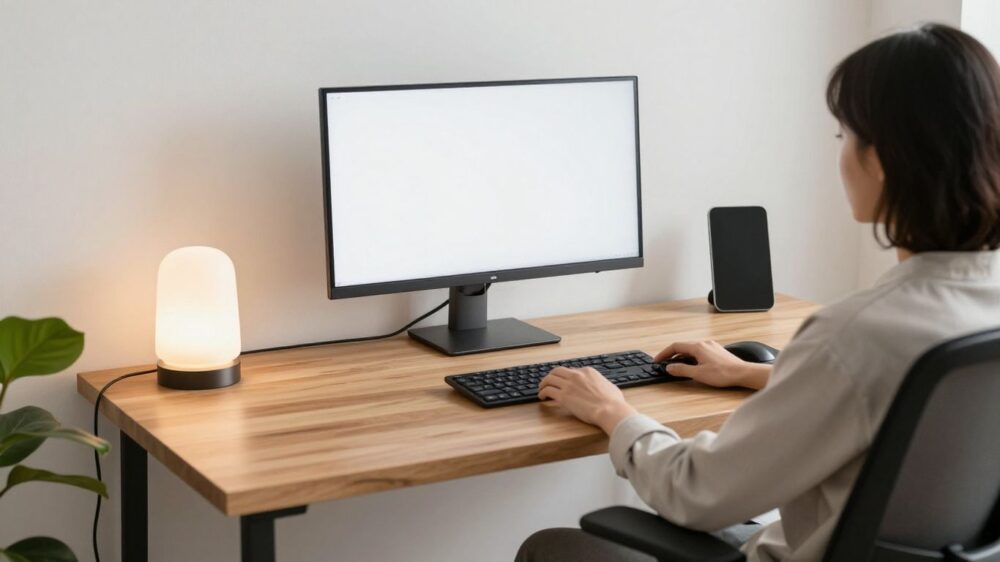
Understand the foundations of desk ergonomics
Desk ergonomics 101 is less about buying perfect furniture and more about arranging our work around the way our bodies naturally move. A comfortable workstation supports us without demanding constant effort from our back, neck, shoulders, hands, or eyes. We can usually make meaningful improvements by observing where tension builds and adjusting one part of the setup at a time.
How posture affects comfort and productivity
Posture influences how much effort we use to sit, look, reach, and type. When our head drifts forward or our shoulders round towards the screen, muscles may stay switched on for longer than we realise. That can make a work session feel tiring even when the task itself is not especially demanding.
We do not need to hold one rigid pose all day. A useful posture gives us support while leaving room for small, natural movements. When our chair, desk, and screen are arranged well, we can give more attention to the work instead of repeatedly shifting to escape discomfort.
The risks of a poorly adjusted workstation
A workstation that is too high, too low, too deep, or too cramped can encourage awkward positions. We may reach for the mouse with the shoulder lifted, bend the neck towards a laptop, or perch on the front edge of a chair because the feet cannot rest comfortably. Repeating these positions can contribute to fatigue and soreness.
Discomfort is useful feedback, but it is not a precise diagnosis. We should treat persistent or worsening pain seriously and seek appropriate professional guidance rather than trying to solve every problem with a desk adjustment. For everyday setup decisions, however, a short review of our seating, screen, and input devices is a sensible place to begin.
Why neutral alignment matters
Neutral alignment means keeping the body in a relaxed, balanced position rather than forcing joints towards their extremes. We can picture the ears roughly over the shoulders, the shoulders resting rather than shrugging, and the forearms supported without sharply bent wrists. The exact position will vary from person to person, so comfort and ease matter more than a rigid visual rule.
The goal is not to sit like a statue. Small adjustments add up when we make them throughout the day, especially if they reduce reaching, twisting, and prolonged bending. A neutral starting point gives us more freedom to move without beginning from a strained position.
When to change positions throughout the day
Even a carefully arranged desk cannot make prolonged stillness comfortable forever. We can change position when we finish a task, while a document loads, or whenever we notice ourselves leaning into the screen. Standing briefly, walking to refill a drink, or shifting our seat can break up a long spell of sitting.
Rather than waiting for strong discomfort, we can use ordinary work transitions as reminders. A change does not need to be dramatic; a small shift in hip position, a relaxed shoulder roll, or a few steps can be enough to reset how we feel before returning to the desk.
Set up your desk and chair correctly
Our chair and desk create the base for everything else in the workstation. If the seat is wrong, we often compensate by raising the shoulders, bending the neck, or sliding forwards. We can set the lower body first, then arrange the desk and equipment around that position.
Choosing the right chair height
We should adjust the chair so our feet can rest securely while our knees remain comfortable and our thighs are broadly supported. The chair should let us sit back against the backrest without the seat edge pressing sharply behind the knees. If we need to lift our shoulders to reach the desk, the chair may be too low; if our feet dangle, it may be too high.
A chair does not need to be elaborate to be useful. Height adjustment, a supportive backrest, and a seat that suits our body give us a practical starting point. We can sit back, relax the shoulders, and check whether our arms can reach the desk without leaning forwards.
Positioning your hips, knees, and feet
We can aim for hips level with or slightly higher than the knees, with enough room to shift position. Both feet should have a stable place to rest, whether that is the floor or a separate support. Keeping the knees from being pressed tightly against the underside of the desk also helps us avoid folding ourselves into a cramped posture.
A quick lower-body check can reveal problems that are easy to overlook. If we keep crossing one leg to feel balanced, slide forwards to find foot support, or twist to make room, the chair or desk may need adjustment. Creating space for the legs often improves the rest of the posture without any new equipment.
Adjusting your desk height and legroom
The desk should allow our elbows to sit near our sides while the forearms reach the keyboard without a lift through the shoulders. We also need enough clearance to move our legs, turn slightly, and sit close enough to the work surface. A desk that looks spacious on top can still be restrictive if drawers, cables, or a central panel block our knees.
We can test the desk with the chair in its intended position rather than adjusting each item separately. Sit back, place the feet, let the shoulders drop, and then see whether the working surface meets the hands comfortably. If the desk cannot move, a change to chair height or a platform under the feet may help, provided it does not create a new problem at the screen.
Using a footrest for better support
A footrest can help when the chair needs to be raised for the desk but our feet no longer reach the floor. It should feel stable and give the feet a broad enough surface to move between positions. We can use a purpose-made footrest or a secure, suitable alternative, as long as it does not slide away or force the ankles into an awkward angle.
The support should complement the chair rather than become something we brace against all day. We can keep the feet relaxed, change their position occasionally, and check that the thighs still feel supported. If the footrest makes us push the knees up sharply, we should revisit the chair and desk arrangement instead.
Position your monitor, keyboard, and mouse
Once our lower body is supported, we can organise the equipment that determines where the head, arms, and hands spend their time. The most-used items should be close enough that we do not reach or lean repeatedly. We should also arrange them for the work we actually do, since a setup for long typing sessions may differ from one built around reading or calls.
Finding the ideal monitor height and distance
Place the monitor directly in front of us so we do not turn the head for long periods. The top of the display can sit around eye level, though the best height depends on screen size, vision, and whether we read from the centre or lower part of the screen. We should be able to view the display without bending the neck down or tipping the chin upwards.
The screen should be far enough away that we can read comfortably without leaning forwards. If we find ourselves creeping towards it, we can first increase the text size or adjust the screen position rather than simply moving the chair closer. A monitor arm, stand, or stable riser can help us fine-tune height while keeping the surface clear.
Keeping your keyboard and mouse within easy reach
The keyboard and mouse should sit close enough for the elbows to remain near the body. We can keep the keyboard fairly flat if that feels natural, with the hands floating lightly rather than pressing hard into the desk. The mouse should be beside the keyboard, not pushed far away by other objects or placed so high that the shoulder has to lift.
Our frequently used items deserve the easiest reach. We can move notebooks, phones, and drink bottles to less disruptive positions, leaving the central area for the keyboard and mouse. This simple rearrangement reduces the number of times we twist or extend the arm during ordinary tasks.
Reducing wrist, shoulder, and neck strain
A relaxed upper body is a useful check as we work. The shoulders should not creep towards the ears, the elbows should not flare widely, and the wrists should not remain sharply bent while we type or point. We can adjust the chair, keyboard, and mouse together, because changing one item often changes the position of the others.
If the mouse causes repeated reaching, we can bring it closer or try a different grip and sensitivity setting. If typing makes the wrists uncomfortable, we can review the keyboard angle and avoid leaning heavily on the wrist edges. Short pauses also matter; equipment adjustments work best when paired with regular changes in position.
Setting up a laptop for ergonomic use
A laptop combines the screen and keyboard, which makes a comfortable long session harder to achieve. Raising the screen usually raises the keyboard too far, while keeping the keyboard at a good height often leaves the screen low. For extended work, we can place the laptop on a stable stand and use a separate keyboard and mouse.
The laptop should remain secure and leave enough space for cables and hands. We can position the external screen or raised laptop directly ahead, then check the same neck and shoulder cues we would use with a desktop monitor. For short tasks, a laptop may be fine as it is; we do not need to build a full setup for every brief email.
Improve lighting and reduce visual strain
Good lighting lets us see the screen and nearby paperwork without squinting or leaning forwards. The room does not need to be bright everywhere; it needs a comfortable balance between the display and its surroundings. We can make changes by observing reflections, shadows, and the way our eyes feel after reading for a while.
Placing your desk to manage glare
Glare often comes from a window, overhead light, or bright surface reflected in the display. We can place the desk so the screen is not directly facing a window, while avoiding a strong window behind us if it creates a reflection. Blinds or curtains can soften daylight, and turning the monitor slightly may remove a distracting patch of brightness.
We should check the setup at different times of day because sunlight changes. A position that looks comfortable in the morning may become reflective in the afternoon. It is usually easier to adjust the light source or screen angle than to keep leaning sideways to avoid a reflection.
Choosing comfortable ambient lighting
Ambient lighting should let us see the room and any printed material without making the screen look dull by comparison. A desk lamp can provide useful task light, but we should aim it at the work surface rather than directly at our eyes or the monitor. Diffused light is often more comfortable than a harsh, bare bulb.
We can also avoid placing a bright lamp immediately behind the screen or in our direct peripheral view. The right arrangement is the one that reduces squinting and sharp contrasts while keeping the room pleasant. As our work changes from screen reading to handwriting or video calls, the light may need a small adjustment.
Adjusting screen brightness and contrast
Screen brightness should suit the room rather than follow a fixed setting. If the display looks like a light source in a dim room, it may be too bright; if text appears grey and difficult to distinguish, it may be too dim or low in contrast. We can make gradual changes and give our eyes a moment to settle before deciding.
Text size, colour settings, and display scaling can also affect comfort. Increasing the size of small text is often more helpful than moving our face closer to the screen. We should keep the display clean, since dust and fingerprints can make reading feel harder than it needs to be.
Following the 20-20-20 rule
The 20-20-20 rule is a simple reminder to look away from near work regularly: roughly every 20 minutes, look at something around 20 feet away for about 20 seconds. We can use it as a prompt rather than a strict test, especially when our work makes exact timing awkward. The main idea is to let the eyes change focus and to interrupt an unbroken spell of screen viewing.
A glance across the room, a view out of a window, or a brief look while standing can fit naturally into a workday. We can combine the visual break with a shoulder release or a sip of water, creating a small pause that supports both our eyes and the rest of the body.
Build healthy movement habits at your desk
Ergonomics works best as a pattern of actions, not a single posture we try to maintain perfectly. We can set up the workstation well and still feel stiff if we remain in one position for hours. Movement habits should be easy enough to repeat on busy days, when elaborate routines are the first thing to disappear.
Taking effective microbreaks
A microbreak is a brief pause from a demanding position or repetitive action. We might stand while reading a message, walk to collect something, or let the arms hang comfortably before starting the next task. These pauses do not need to interrupt every thought; they can fit between meetings, emails, and natural stopping points.
We can make microbreaks more likely by keeping water a short walk away, using a timer when we lose track of time, or pairing movement with routine events. The most useful break is one we actually take. A few modest pauses spread across the day are more practical than waiting for a long break that never arrives.
Adding simple desk stretches
Gentle movements can release the areas that feel held or compressed after computer work. We might slowly roll the shoulders, open and close the hands, turn the head within a comfortable range, or extend the legs briefly. Movements should be controlled and easy, never forced into pain or a strong stretch.
We can choose only a few motions that suit our work and repeat them when tension begins to build. There is no need to turn a desk break into a demanding exercise session. If a movement causes pain, numbness, dizziness, or unusual symptoms, we should stop and seek suitable professional advice.
Alternating between sitting and standing
Changing between sitting and standing can give us another way to vary the load during the day. When standing, we can keep the screen and input devices at a height that allows the shoulders to relax rather than reaching upwards. We should also shift our weight and move occasionally instead of treating standing as another fixed posture.
A sit-stand desk is not essential for movement. We can stand for a phone call, work at a higher surface for a short task, or simply walk away from the desk between activities. The useful principle is variation, not a requirement to spend a particular amount of time in either position.
Recognizing early signs of discomfort
Early signs may include tight shoulders, a stiff neck, tired eyes, tingling hands, or a habit of leaning closer to the screen. We can pause when we notice these cues and ask which part of the setup or routine might be contributing. Sometimes the answer is equipment; sometimes we have simply been still for too long.
We should not ignore symptoms that persist, worsen, or interfere with ordinary activities. A workstation guide cannot assess an injury or replace professional care. Our role is to make reasonable adjustments, observe what changes, and get appropriate help when discomfort does not settle.
Customize your workstation for your needs
There is no single ergonomic arrangement that suits every body, room, or kind of work. Height, reach, vision, mobility, available space, and daily tasks all shape the right setup. We can use general principles as a starting point, then refine them through small experiments and honest attention to comfort.
Adapting the setup to your height and body type
People of different heights may need different relationships between the chair, desk, screen, and floor. A taller person may need more legroom and a higher working surface, while a shorter person may need a footrest or a way to bring the screen and keyboard into a closer fit. Body proportions matter too; arm length and torso length do not always change together.
We can adjust one variable at a time and test the result during normal work. If raising the chair improves the arms but leaves the feet unsupported, add stable foot support and then recheck the hips and knees. The best setup is the one that lets us work comfortably without forcing a textbook shape onto a body it does not fit.
Accommodating remote work spaces
Remote work may mean using a dining table, a small corner, or more than one temporary surface. We can still prioritise the essentials: a stable seat, adequate screen height, enough room for the forearms, and a clear path for the legs. When space is limited, lightweight equipment that can be moved away after work may be more useful than a permanent installation.
We can also create a simple reset routine at the start and end of the day. Place the screen, keyboard, and mouse in their working positions, remove clutter from the immediate reach area, and put everything away when work ends. This keeps the setup functional without allowing it to take over the room.
Choosing ergonomic accessories
Accessories are most useful when they solve a clear problem. A monitor stand may address screen height, an external keyboard may improve a laptop arrangement, and a footrest may support the feet when chair height is otherwise suitable for the desk. We should choose based on fit and stability rather than on a long list of features.
Before buying anything, we can identify the adjustment we are trying to make and check whether a simpler change would work. Moving the mouse closer costs nothing, and changing the angle of a lamp may remove glare without replacing the light. Buy for the problem rather than collecting equipment that creates more clutter.
Knowing when to consult a professional
If discomfort continues despite sensible changes, a qualified health professional may be able to help us understand what is happening and what support is appropriate. We should be especially cautious with persistent pain, weakness, numbness, loss of sensation, or symptoms that affect sleep or everyday movement. A workplace ergonomics assessment may also be useful when the setup involves specialised equipment or accessibility needs.
We can bring practical observations to that conversation: when symptoms appear, which tasks affect them, what adjustments we tried, and what changed. This information gives the professional a clearer picture without asking us to diagnose ourselves. Desk adjustments are valuable, but they have limits.
Conclusion
A comfortable workstation begins with a supported lower body, a screen we can view without bending, and input devices close enough to use without reaching. From there, we can improve lighting, vary our positions, and respond early when tension appears. We do not need a perfect desk to work more comfortably; we need a setup that fits us and a willingness to adjust it as our work and bodies change.
Frequently Asked Questions
What is desk ergonomics 101?
Desk ergonomics 101 is the basic practice of arranging our chair, desk, screen, lighting, and input devices to support comfortable work. It also includes changing positions and taking regular movement breaks rather than holding one posture for the whole day.
How high should a desk chair be?
Set the chair so the feet are supported, the knees feel comfortable, and the arms can reach the desk without the shoulders lifting. If the feet cannot reach the floor after the chair is adjusted for the desk, stable foot support may help.
Where should a monitor sit?
Place the monitor directly in front of us and high enough that we can view it without tipping the head up or bending the neck down. The ideal distance is the one that lets us read comfortably without leaning forwards.
Is it better to sit or stand while working?
Neither position needs to be maintained all day. Alternating between sitting, standing, and walking gives us more variety, while standing still for long periods can create its own discomfort.
How can we make a laptop more ergonomic?
For longer sessions, raise the laptop screen on a stable stand and use a separate keyboard and mouse. This lets us position the screen and hands more independently than the built-in design allows.
What should we do if our desk causes pain?
Pause and review the setup, then make small changes to seating, screen height, reach, and movement habits. If symptoms persist, worsen, or include numbness or weakness, seek appropriate professional guidance.
Does an ergonomic chair solve poor posture?
A supportive chair can make a better position easier, but it cannot replace movement or correct every workstation problem. The chair should be adjusted alongside the desk, screen, and keyboard so the whole arrangement works together.