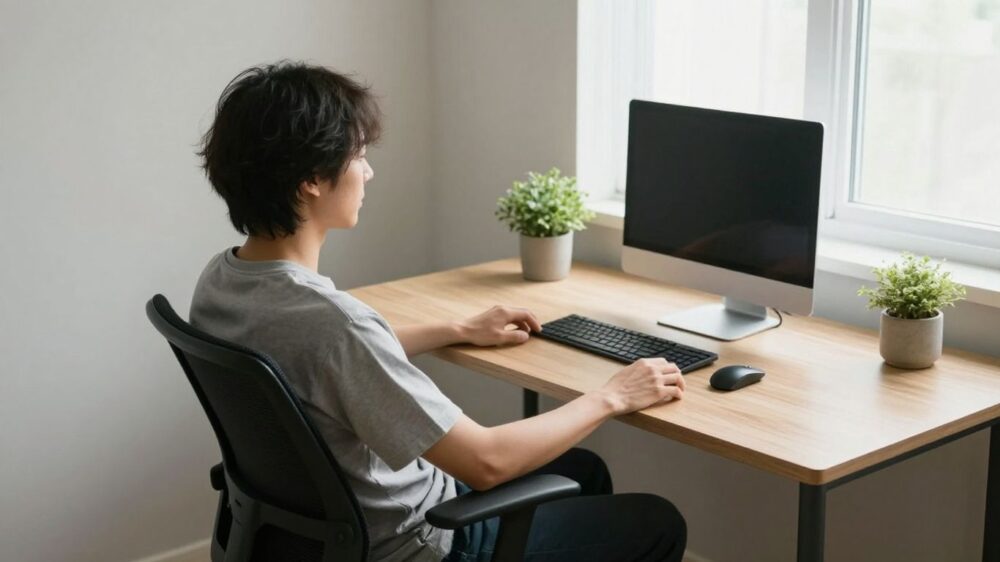
Understand the basics of desk ergonomics
Desk ergonomics 101 is less about finding one perfect position and more about arranging our workspace so everyday tasks feel comfortable and easy to repeat. We can think of it as a relationship between our bodies, the furniture, and the tools we use. Small adjustments to that relationship may reduce unnecessary reaching, twisting, or leaning. The aim is a setup that supports our work without asking us to hold still all day.
How posture, positioning, and movement work together
Posture is only one part of the picture. When the chair, screen, and input devices are placed within comfortable reach, we can work with less effort and change position more easily. We also benefit from moving now and then instead of trying to maintain one rigid pose. A comfortable working position should feel supported, not forced.
Common signs that your setup may be causing strain
A workspace may need attention when we repeatedly find ourselves leaning toward the screen, hunching our shoulders, or reaching for the mouse. We might also notice tired eyes or stiffness after staying in one position for a long stretch. These cues do not tell us exactly what is wrong, but they can help us spot which part of the setup to review. If discomfort persists or concerns us, we can seek guidance from an appropriate health professional.
Why a comfortable setup can look different for each person
Bodies, tasks, and workspaces vary, so there is no single arrangement that suits everyone. A person who spends most of the day typing may have different priorities from someone who alternates between calls, reading, and hands-on work. Furniture dimensions and individual preferences matter too. We can use general ergonomic principles as a starting point, then make small changes based on how the setup feels during real tasks.
Adjust your chair and desk
Our chair and desk establish the working height for nearly everything else. If either one encourages us to reach, shrug, or perch uncomfortably, it can be harder to settle into a relaxed position. We can adjust the chair first, then bring the desk and work tools into a workable relationship with it. A few careful changes are usually easier to assess than moving everything at once.
Set seat height to support your feet and legs
Adjust the seat so our feet can rest on the floor and our legs feel supported, without pressure building at the backs of the thighs. If the chair needs to be higher for the desk, a stable footrest can help bring the floor closer. We should have enough room to shift our legs rather than feeling wedged beneath the desk. Comfort is a better guide than trying to match an arbitrary measurement.
Use the backrest to support a relaxed, upright posture
We can move back into the chair and let the backrest support us, rather than balancing at the edge of the seat. The goal is an upright but relaxed position, with shoulders at ease and the back comfortably supported. If the chair has adjustable support, we can set it where it meets our back without pushing us forward. We should still feel free to change position as the workday goes on.
Choose a desk height that lets your shoulders relax
When our hands are on the keyboard, the desk should allow our shoulders to stay relaxed rather than lifted. If a desk is too high, lowering the chair may help only if our feet remain supported; otherwise, a footrest or a different arrangement may be more comfortable. If the desk is too low, raising the work surface can reduce the need to hunch. We can test the height while typing, since that is often more revealing than judging it from a distance.
Set up a sit-stand desk for easy position changes
A sit-stand desk can make it easier to vary how we work, but switching positions should feel simple rather than disruptive. Set the seated height for relaxed shoulders and supported feet, then adjust the standing height so the arms can rest comfortably while we use the keyboard. We can keep frequently used items within reach in both positions. The aim is to make position changes convenient, not to replace one long, fixed posture with another.
Position your monitor and screen
Screen placement affects how often we lean forward or turn our heads while working. We can start by arranging the display where we can read it without straining, then adjust for the type of work we do. Lighting and screen settings also influence comfort, especially when we move between documents and on-screen tasks. There is no need to change every setting at once; a small adjustment can show us what helps.
Find a comfortable viewing distance and screen height
Place the screen at a distance where we can read text comfortably without leaning toward it. The top portion of the display is often a useful starting point for height, but the best position depends on our screen, vision, and preferred posture. If we catch ourselves tipping our head or moving closer, we can try adjusting the height, distance, or text size. The right position lets us look at the screen while keeping our head and neck relatively relaxed.
Arrange multiple monitors to reduce repeated neck turns
For two screens, we can place the one we use most directly in front of us and keep the other close beside it. If we use both equally, placing them together in front can reduce the need to turn repeatedly to either side. We should also bring frequently referenced windows onto the screen that is easiest to view. A tidy arrangement can make switching between displays feel less like a series of neck turns.
Set up a laptop for longer work sessions
A laptop combines the screen and keyboard, which can make it awkward to position both for extended work. We can raise the laptop screen to a comfortable viewing height and use a separate keyboard and mouse when available, placing them so our arms can stay relaxed. For shorter tasks, we may be able to adjust the laptop’s position and text size instead. The useful setup is the one that suits the task and the time we expect to spend on it.
Reduce glare and adjust screen brightness
Reflections from windows or overhead lights can make us squint or change our posture to see the screen. We can try turning the display, shifting the light source, or adjusting window coverings before making bigger changes. Screen brightness should feel comfortable in the room rather than much brighter or dimmer than our surroundings. After making an adjustment, we can work for a little while and see whether reading feels easier.
Arrange your keyboard and mouse
We use our keyboard and mouse repeatedly, so their placement has an outsized effect on how comfortably we can work. They should be close enough that we do not have to reach, with space for our arms to rest naturally. The best arrangement depends on the task and the way we use each device. A brief check while actually typing and clicking can reveal awkward positions we might not notice when sitting still.
Position input devices to keep your shoulders relaxed
Place the keyboard and mouse in front of us and within easy reach. Our elbows can remain near our sides, with the shoulders relaxed rather than pulled forward or lifted. If the mouse sits too far away, we may reach for it throughout the day; bringing it closer can make movement feel more natural. We can also clear nearby clutter that crowds the space for our hands.
Keep wrists comfortable while typing and clicking
As we type, we can aim for wrists that feel straight and unforced rather than sharply bent up, down, or sideways. A light touch and occasional pauses can help us avoid gripping the mouse or pressing the keys harder than needed. If a wrist rest is part of our setup, it should not make us hold our wrists in an uncomfortable position while typing. We can adjust the keyboard angle or position if our hands keep feeling strained.
Choose accessories that fit your tasks and preferences
Accessories are most useful when they solve a specific problem in our setup. Before adding anything, we can consider what we do often and what feels awkward now. For instance, these questions can help us decide whether a change is worth trying:
- Do we need more room to move the mouse?
- Would a separate keyboard make laptop work more comfortable?
- Is a footrest needed to support our feet at the desk height?
- Would a document holder keep frequently read pages easier to view?
Once we identify a practical need, we can test one change at a time. That makes it easier to notice whether an accessory genuinely improves the way we work or simply takes up space.
Make movement part of your workday
Even a thoughtfully arranged desk cannot make one position comfortable forever. Our bodies benefit from chances to shift, stand, walk, or stretch as the day allows. We can build movement into transitions that already happen, rather than waiting for a long break to appear. A flexible rhythm is often easier to sustain than a strict routine.
Take brief movement breaks between tasks
When we finish a call, send a piece of work, or pause to think, we can use the transition to stand up or walk a little. These short changes of activity can break up long stretches at the desk without requiring a formal exercise plan. We might refill a glass of water or look away from the screen while we move. Small, repeatable pauses can be more realistic than waiting until we feel completely stiff.
Alternate positions without relying on one perfect posture
If our workspace allows it, we can alternate between sitting and standing, and shift our weight or reposition ourselves while seated. We do not need to stay in any one position simply because it seems ideal. A standing setup should feel as comfortable as the seated one, and it is fine to sit again when that feels better. The broader goal is regular position changes rather than a perfect posture held for hours.
Use simple stretches to ease stiffness
Gentle movement can feel welcome after we have stayed in one position. We might roll our shoulders, open and close our hands, or stand and take a few comfortable steps. We should keep movements easy and stop if they cause pain or feel wrong. These small resets are a way to vary the workday, not a substitute for addressing persistent discomfort.
Adapt your setup to your space and needs
A useful workspace does not require a large room or a full set of specialized furniture. We can often improve what we have by changing the layout, clearing a little room, or adjusting the order of our tools. Shared spaces bring extra challenges, since the setup may need to change between users or tasks. Starting with our most frequent sources of awkwardness helps us make the space work better without overcomplicating it.
Improve ergonomics in a small or shared workspace
In a compact space, we can keep only the items needed for the current task within easy reach and store the rest nearby. If several people use the same desk, simple adjustments such as a movable chair or an easy-to-reposition screen can help each person settle in. We can also agree on a quick reset routine so the next person is not left working around someone else’s layout. The goal is to make the useful adjustments easy to repeat.
Prioritize low-cost adjustments before buying equipment
Before shopping for new furniture, we can notice what feels uncomfortable and test a low-cost change. Moving the screen, clearing a surface, changing chair height, or improving the lighting may address the issue. We can work through a short sequence to keep the process practical:
- Notice when and where the discomfort or awkward reach occurs.
- Adjust the position of one item that may be contributing to it.
- Use the revised setup during a normal work task.
- Keep the change if it helps, or try a different adjustment.
This approach gives us a clearer idea of what the workspace actually needs. If an item is still a barrier after simple changes, we can then consider whether specific equipment would be useful.
Modify your setup for accessibility or existing discomfort
Our setup should account for how we move, see, reach, and work, including any access needs or existing discomfort. We can place essential items within comfortable reach, leave clear paths through the workspace, and adjust the screen or input devices to suit our use. A change that helps one person may not help another, so we should not assume a standard arrangement fits every situation. If discomfort is ongoing or a setup change feels uncertain, we can ask a qualified professional for individual guidance.
Conclusion
A comfortable desk setup grows from observing how we work and making thoughtful adjustments to the chair, desk, screen, and input devices. We can start with what we already have, then build in regular opportunities to move and change position. Rather than chasing one ideal posture, we can aim for a workspace that supports our tasks and feels adaptable throughout the day.
Frequently Asked Questions
What is desk ergonomics?
Desk ergonomics is the practice of arranging our workspace, furniture, and tools to support comfortable and practical work. It considers how we sit, reach, view a screen, and move during the day.
How should we sit at a desk?
We can sit with our feet supported, shoulders relaxed, and back comfortably supported by the chair. We should also feel able to shift position rather than holding a rigid pose.
Where should a computer monitor be placed?
A monitor should be at a distance where we can read without leaning forward, and at a height that lets us look at it with a relatively relaxed head and neck. We can adjust the position to suit our screen and needs.
Is a laptop suitable for a full workday?
A laptop can be used for longer sessions, though its attached screen and keyboard may be difficult to position comfortably at the same time. Raising the screen and using a separate keyboard and mouse can make it easier to arrange each at a comfortable height.
How often should we take movement breaks?
There is no single schedule that fits every workday. We can use natural transitions between tasks as reminders to stand, walk, stretch gently, or otherwise change position.
Do we need to buy an ergonomic chair or desk?
Not necessarily. We can first try adjustments to the chair, screen, lighting, and item placement. If an existing problem remains, we can consider whether a particular piece of equipment addresses it.
What should we do if our desk setup causes ongoing discomfort?
We can review the setup and make changes that reduce awkward reaching or prolonged positions. If discomfort continues or causes concern, we should seek guidance from an appropriate qualified health professional.