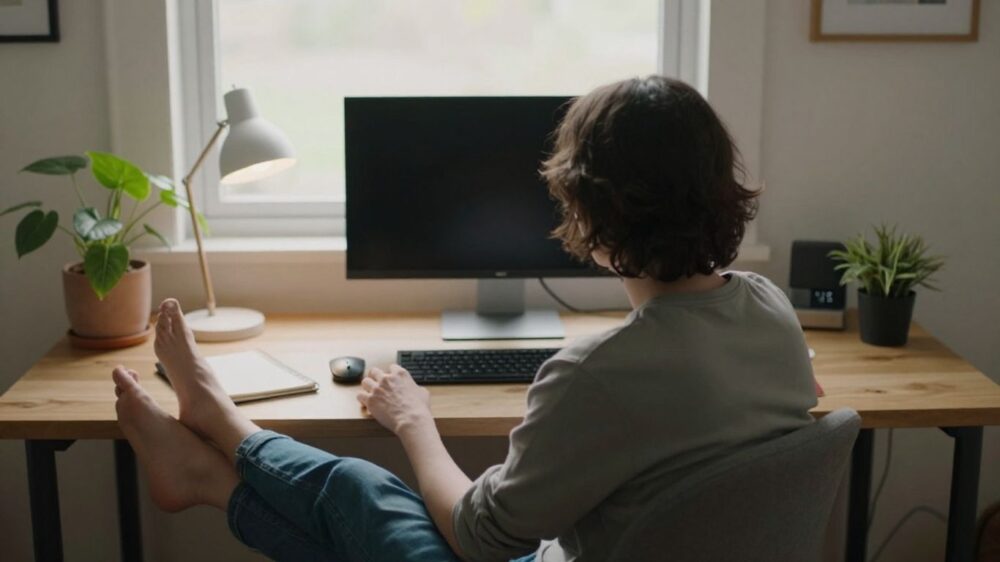
Start with a neutral sitting posture
A comfortable workstation starts with the way we sit, not with a perfect-looking pose. In this guide to desk ergonomics 101, we’ll make small adjustments that help the chair, desk, and screen work together. The aim is to feel supported while staying free to shift naturally.
Keep your feet supported and knees near hip level
When we sit, both feet should rest on the floor or on a stable footrest, rather than dangling or being tucked far beneath the chair. Keeping our knees roughly level with our hips can make it easier to settle into the seat without perching at its edge. If the chair is high enough for our arms but leaves our feet unsupported, a footrest can help bridge the gap.
Position your hips and back against the chair
We can start by sitting back so the chair supports our hips and the length of our back. A small gap between the backs of our knees and the seat edge helps us avoid pressing against the seat. If we find ourselves sliding forward or leaning toward the screen, that may be a cue to adjust the chair or bring the work closer.
Relax your shoulders and keep your elbows close
Letting our shoulders rest instead of lifting them toward our ears can make desk work feel less tense. We can keep our upper arms near our sides, with elbows bent comfortably and forearms supported where possible. Comfort comes before exact angles: a relaxed position that lets us reach the keyboard without stretching is a useful starting point.
Adjust your posture without forcing a rigid pose
There isn’t one seated position we need to hold perfectly all day. We can sit tall enough to feel supported, then shift our weight, move our legs, or change how we lean as the task changes. When a posture starts to feel tiring, it’s often more helpful to adjust than to brace ourselves and try to stay still.
Adjust your chair and desk
A chair and desk are a working pair, so changing one may affect how the other feels. We can tune the chair first, then check whether the desk lets our arms rest comfortably while we work. Small adjustments are often easier to assess when we make them one at a time.
Set chair height to support your feet and legs
We can raise or lower the chair until our feet have steady support and our thighs feel comfortably positioned. If our feet lose contact with the floor as we raise the seat to meet the desk, adding a stable footrest may help. We should also check that the seat edge isn’t pressing sharply into the backs of our legs.
Use lumbar support to maintain your lower-back curve
The lower-back area of a chair can help us stay comfortably supported when we sit back. If the chair has adjustable lumbar support, we can move it until it fits the curve of our lower back without pushing us forward. A small cushion may serve as a simple alternative when the chair’s shape does not feel supportive, provided it stays securely in place.
Check desk height against your seated elbow position
With our shoulders relaxed and elbows near our sides, we can compare the desk surface with our forearms. Ideally, the keyboard and mouse can sit at a height that doesn’t make us shrug or reach upward. If the desk is fixed, changing the chair height may help; then we can support our feet as needed and reassess the overall fit.
Adapt your setup when the chair or desk is not adjustable
Not every workspace comes with adjustable furniture, and we can still make practical changes. A firm cushion may raise our seated position, while a stable footrest can support our feet; a sturdy riser can lift a screen if it sits too low. We should make sure any improvised support is stable and leaves enough room to sit close to the desk.
Position your monitor and other screens
Screen placement affects where we hold our head and how often we lean forward. We can begin with the primary screen, then arrange any additional displays so we can see them without repeatedly twisting. The best position is one that lets us read comfortably while keeping a relaxed posture.
Place the primary screen at a comfortable viewing distance
We can place the screen roughly an arm’s reach away as an initial guide, then adjust it until the text is easy to read without leaning in. If we increase text size or zoom, we may be able to keep the screen farther back while still reading comfortably. The right distance can vary with screen size, vision, and the work we’re doing.
Align the top of the screen with your eye level
A screen that is much too low may encourage us to bend our neck forward, while one that is too high can feel awkward to look at. We can arrange the top edge around eye level as a starting point and adjust based on where our eyes naturally land when we sit comfortably. If we use multiple screens, placing the one we look at most directly in front of us can reduce repeated turning.
Reduce glare with screen angle and lighting adjustments
Reflections can make a screen harder to read and tempt us to lean or squint. We can turn the display slightly, move it away from a bright window, or adjust blinds and room lights to soften reflections. After each change, we can check the screen from our usual seated position rather than judging the glare while standing elsewhere.
Set up a laptop for longer work sessions
A laptop’s built-in screen and keyboard are joined together, which can make it hard to position both comfortably for extended work. When we’re working for a longer stretch, raising the laptop screen and using a separate keyboard and mouse can give us more freedom to place each part. We can then check that the display is easy to view and the input devices remain close.
Arrange your keyboard, mouse, and frequently used items
A well-placed screen is only part of the setup; our hands and arms need room to work without constant reaching. We can place the keyboard and mouse where they feel easy to use, then bring the tools we reach for often into the same comfortable zone. This keeps the work surface practical without filling every open space.
Keep your keyboard close and wrists in a relaxed position
We can bring the keyboard close enough that our elbows stay near our sides while typing. Keeping our wrists in a natural, relaxed line with our forearms is more comfortable than bending them sharply up, down, or sideways. If the keyboard has feet that tilt it steeply, we can try lowering them and see whether a flatter position feels easier.
Place your mouse beside the keyboard
Keeping the mouse beside the keyboard means we don’t have to reach far or repeatedly extend our arm to use it. We can move the keyboard slightly to make room, then check that our shoulder remains relaxed while moving the mouse. If we switch hands for particular tasks, we can arrange the work surface so that the alternate position is comfortable too.
Choose input devices that suit your tasks and comfort
Different tasks call for different ways of interacting with a computer, and there’s no single device that suits everyone. Before changing equipment, we can consider what we do most often and whether the current setup causes extra reaching, gripping, or awkward wrist positions. Trying an alternative device can be useful, but we should give ourselves time to adjust and notice how it feels during ordinary work.
Keep commonly used items within easy reach
A phone, notebook, or frequently used reference can sit near enough to reach without leaning across the desk. Less-used items can be placed farther away, leaving the main work area open. We can also arrange objects according to how often we use them, so the everyday essentials are easiest to access.
Build movement and breaks into your workday
Even a thoughtfully arranged desk can feel uncomfortable if we stay in one position for too long. Movement gives us a chance to reset our posture and notice what has become stiff or tiring. We can build small changes into the work already on our calendar rather than waiting for a long break.
Change positions regularly instead of holding one posture
We can shift our weight, adjust how we sit, or move our feet while continuing with a task. These ordinary changes are a useful alternative to trying to maintain a single “correct” posture for hours. If we notice ourselves holding our breath or bracing our shoulders, that’s a natural moment to loosen up and reposition.
Take short movement breaks between tasks
A brief pause between emails, meetings, or other tasks can give us a reason to stand and move. We might use a simple sequence that fits the moment: step away from the screen, move our shoulders gently, and walk a little before returning. The point is to make a change of position easy to repeat, not to turn every break into a separate workout.
Alternate sitting and standing when possible
If our work surface allows it, we can alternate between sitting and standing rather than treating either position as the one to hold all day. When standing, we can keep the screen and input devices within easy reach and avoid locking our knees. We can change back when standing starts to feel tiring; comfort is a better guide than staying upright for its own sake.
Use simple stretches to ease desk-work stiffness
Gentle movements can help us loosen up after focusing on a screen. We might roll our shoulders, open and close our hands, or turn our head slowly within a comfortable range. Keep movements easy and unforced; if an action causes pain or feels concerning, we should stop rather than push through it.
Fine-tune your setup for comfort and common concerns
Once the main pieces are in place, the smaller details can make a workspace feel easier to use. We can pay attention to lighting, available room, and how our body responds during ordinary tasks. These observations help us decide what to adjust next without having to redesign everything at once.
Adjust lighting to reduce eye strain
We can aim for enough light to read notes and see the keyboard without creating bright reflections on the screen. A lamp placed to illuminate paper from the side may be more comfortable than a strong light aimed at the display. If our eyes feel tired, we can also look away from the screen regularly and check whether text size, brightness, or room lighting needs adjusting.
Make room for good posture in small workspaces
A compact desk can still be arranged thoughtfully. We can keep only the current task’s essentials on the surface, place the screen directly ahead, and move less-used items to nearby storage. If the keyboard or mouse is pushed too far away by clutter, clearing a small area in front of us can make sitting close to the desk easier.
Notice early signs of discomfort and change one thing at a time
We can treat recurring tension, frequent leaning, or a habit of reaching for the mouse as clues about the setup. Rather than changing several things at once, we can adjust one item and see whether the work feels easier over the next few tasks. This makes it simpler to tell which change helped and which one needs another look.
Seek professional guidance for persistent pain or symptoms
Workspace adjustments can improve how a desk feels, but they may not address every cause of ongoing discomfort. If pain or other symptoms persist, worsen, or interfere with daily activities, we can contact a qualified health professional for guidance. We should describe what we notice and when it occurs, rather than relying on a desk adjustment alone to explain it.
Conclusion
A comfortable workspace is usually built through a series of modest changes: supporting our feet, bringing the screen and input devices within easy reach, and moving throughout the day. We can start with the adjustment that feels most obvious, then reassess as we work. When our setup supports both focus and movement, it becomes easier to make the desk fit us rather than the other way around.
Frequently Asked Questions
What is the first thing we should adjust at a desk?
We can begin with the chair: sit back, support both feet, and let the shoulders relax. Then we can check the desk and screen in relation to that seated position.
How far away should a computer screen be?
A comfortable starting point is roughly an arm’s reach, but the right distance varies. We can adjust it until reading feels easy without leaning forward.
Should our knees be higher or lower than our hips?
We can aim for our knees to sit around hip level, with both feet supported. Small differences are normal, and comfort matters more than matching an exact angle.
How can we use a laptop more comfortably for long sessions?
We can raise the laptop screen and use a separate keyboard and mouse, allowing each to be positioned more freely. We should also check that the devices remain close enough to use without reaching.
Is standing all day better than sitting?
Neither position needs to be held all day. When possible, we can alternate between sitting and standing and change positions regularly.
What can we do if our desk is too high?
We can adjust the chair so our arms sit comfortably relative to the work surface, then support our feet with a stable footrest if needed. Keeping the keyboard and mouse close can also reduce reaching.
When should we seek help for desk-related discomfort?
If discomfort or other symptoms persist, worsen, or affect daily activities, we can seek guidance from a qualified health professional. We can also note which tasks and positions seem to bring the symptoms on.